404 error pages tracking
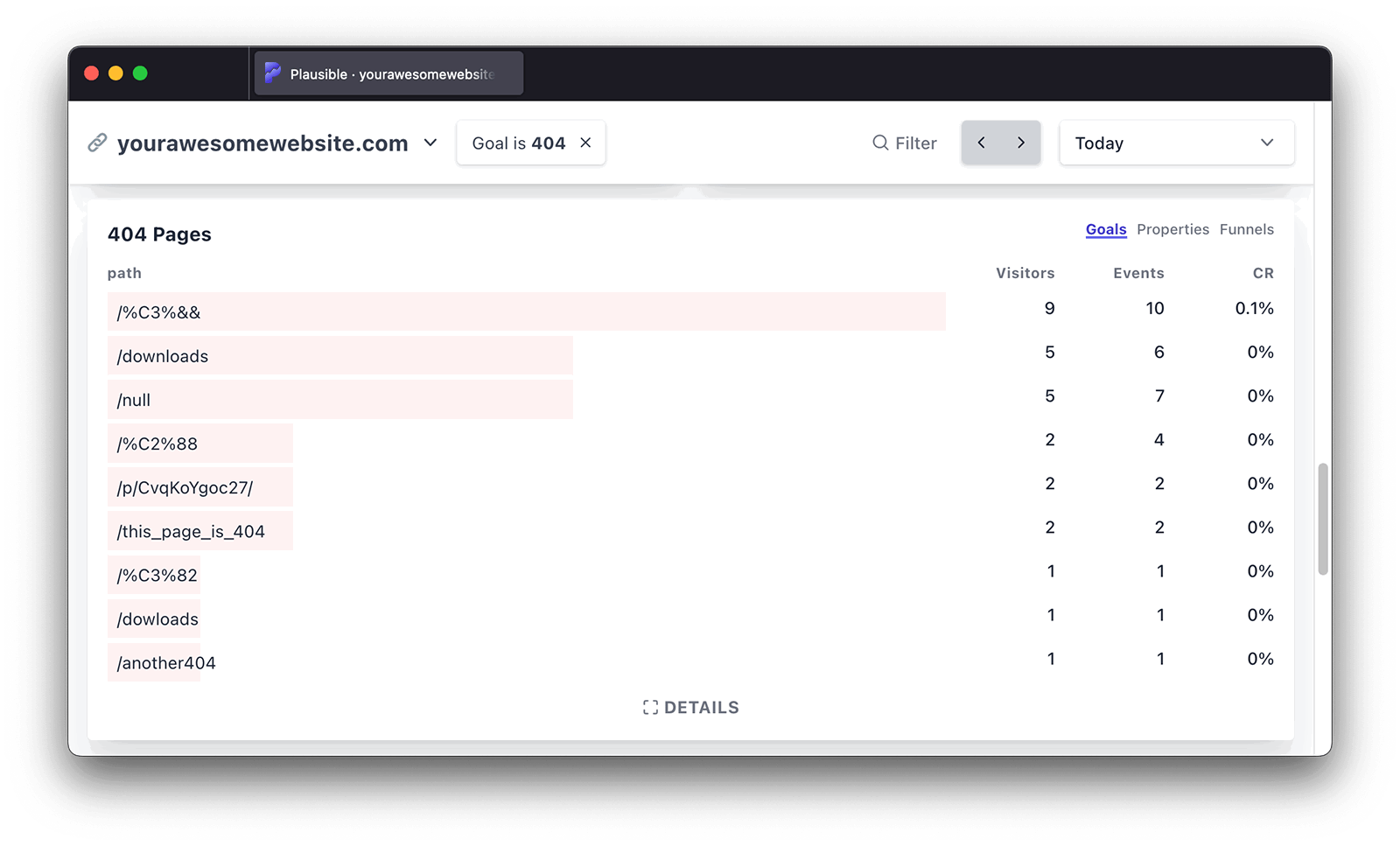
If you use the 404 error pages tracking feature, then these count towards your billable monthly pageviews.
Tracking 404 error pages is essential for many site owners and Plausible helps you automate this process. With our 404 error pages tracking you can:
- Get an easy overview of which 404 pages are accessed by your visitors (you can even group error pages by any keyword)
- See where visitors find broken links to your 404 error pages
- Then you can manually fix broken links and redirect error pages
404 error pages requires additional work in addition to setting up tracking script. If you want to track 404 error pages, here's how to enable it:
Step 1: Paste this piece of code to your 404 page template
Add this code to your 404 page. For instance, if you're using WordPress, your 404 page template will be called 404.php. It will be located within your theme files.
<script>document.addEventListener('DOMContentLoaded', function () { plausible('404'); });</script>
You can place this code anywhere in the <head> or <body> section of your 404 page template.
The quickest way to start tracking 404 error pages is to use our official WordPress plugin
Step 2: Create a 404 goal on your site
404 events won't show up in your dashboard automatically. You'll have to configure the goal for the conversion numbers to show up.
To configure a goal, go to your website's settings in your Plausible account and visit the Goals section. You should see a list of current goals with a prompt to add a goal.
Click on the + Add goal button to go to the goal creation form.
Select Custom event as the goal trigger and enter 404 as the name of the custom event you are triggering. The 404 goal works the same way as any other custom event goal.
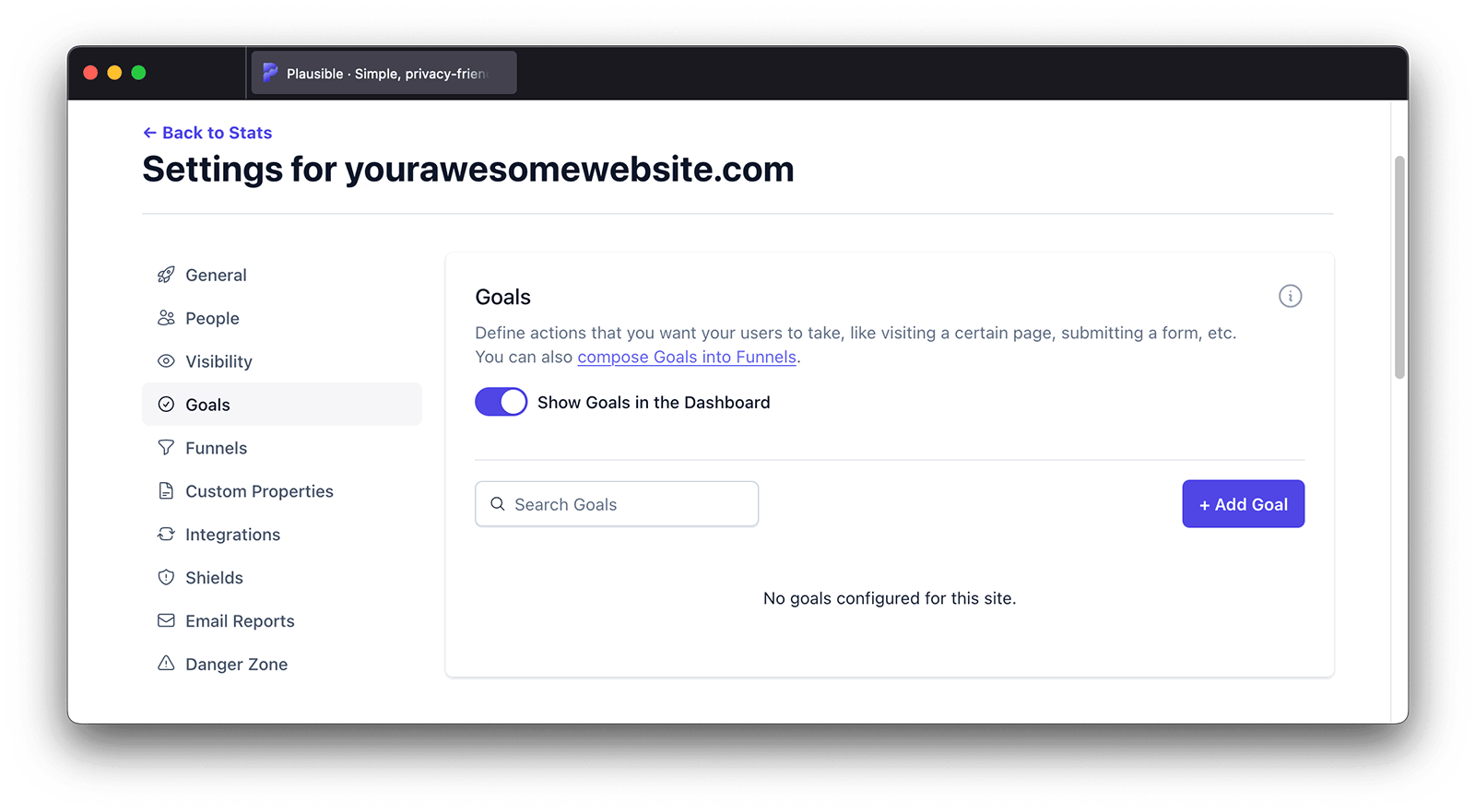
After clicking on the Add goal button, the goal will be created and you'll be taken back to the Goals page.
Step 3: See all the visits on 404 error pages in your dashboard
After updating your 404 page template and creating the goal, all the visits on 404 error pages will start being tracked and will be displayed in the Goals tab of your Plausible Analytics dashboard. You'll see the 404 goal as soon as the first visit on a 404 error page has been tracked.
Click on 404 to see the full list of all visits on all error pages and have your dashboard filtered by error pages only. Click on a particular error page URL to filter the dashboard by those clicks only and get the full overview of that specific URL. Then you can figure out how your visitors discover the broken links and fix them.
You can also group 404 error pages by any keyword. In the Filter button in the top right of your dashboard, choose Property. Then select path (this includes all the 404 error page paths we have recorded) and use the "contains" option. Add whatever keyword you want to group 404 error pages by and click on the Apply Filter button.
Check out this blog post for more details on the value of tracking 404 error pages.
Other automated goals
Plausible also offers automated tracking for outbound link clicks, file downloads and form submissions. These can all be enabled from the "Site Installation" area in your site settings without any code changes.
How to disable "404 error pages" tracking for your site
You can control what data is collected in the Site Installation area of the General section in your site settings.
When making changes to your optional measurements, your snippet will change so do ensure to insert the newest snippet into your site for 404 error pages tracking to stop. You should also remove the code that you inserted into your 404 error page template.
After you disable 404 error pages tracking, we will automatically remove the goal called 404 from your site.
Why 404 tracking matters
Every 404 visit is a visitor who landed somewhere broken. The impact depends on the cause.
Broken backlinks: An external site links to a URL that no longer exists. These visitors never see your real content. If the linking page has high traffic, the 404 is worth fixing with a redirect.
Broken internal links: Navigation, blog posts or footer links pointing to deleted or renamed pages. These affect both visitors and SEO crawlers.
Post-migration issues: A site redesign or CMS migration often breaks URL structures. High volumes of 404s after a migration indicate incomplete redirects.
Typos and direct traffic: Someone manually typing a URL incorrectly. Usually low volume and not worth acting on unless it is a consistently misspelled page name.
404s also affect your SEO. Crawlers that repeatedly hit 404 pages waste crawl budget on your site and may reduce how frequently they visit your working pages. Fixing high-traffic 404s with proper 301 redirects passes any link equity from the broken URL to the correct destination.
Analyzing and acting on 404 data
Once you have the 404 goal set up, open your Plausible dashboard and filter by the 404 goal. The Top Pages report will show which URLs are generating the most 404 visits.
Prioritize by volume. A URL generating 50 visits per month is worth fixing. One generating one visit per year is not.
Check the referrer. Filter by a specific 404 URL, then look at the Top Sources report to see where those visitors are coming from. If most come from a single external site, contact them to update the link. If most come from organic search, the page was indexed but deleted without a redirect.
Set up redirects for high-traffic 404s. Most hosting platforms and CMS tools support redirect rules. Add a 301 redirect from the broken URL to the closest equivalent page. If no equivalent exists, redirect to the relevant category page or the homepage rather than leaving the visitor on a 404.
Use the contains filter to spot patterns. If many 404 URLs share a path prefix (for example /old-blog/ or /products/legacy/), you can add a wildcard redirect rule that covers the whole group rather than setting up individual redirects.
Troubleshooting: 404 goal showing zero conversions
If you have set up the 404 goal but see no data, check the following.
Code not in the right template. Most platforms have a dedicated 404 error page template (often called 404.html, error.html or similar). Confirm your custom code is in that specific template and not just added to the main layout. Visit a broken URL on your site to verify the 404 page loads correctly.
Goal name mismatch. The goal name in your Plausible site settings must match the event name in your code exactly. The code uses 404 as the event name by default. Check your site settings to confirm the goal is named 404.
Testing with a real 404 URL. After adding the code, visit a URL on your site that does not exist (for example /this-page-does-not-exist-test). Open your Plausible dashboard and check the realtime view. You should see a 404 conversion appear within a few seconds. If it does not appear, open your browser's Network tab and look for a request to plausible.io/api/event to confirm the event is firing. For more general script troubleshooting steps, see troubleshooting your integration.
Caching. If your site is behind a CDN or caching layer, the 404 page template may be cached without the new code. Purge your cache after making the change.